
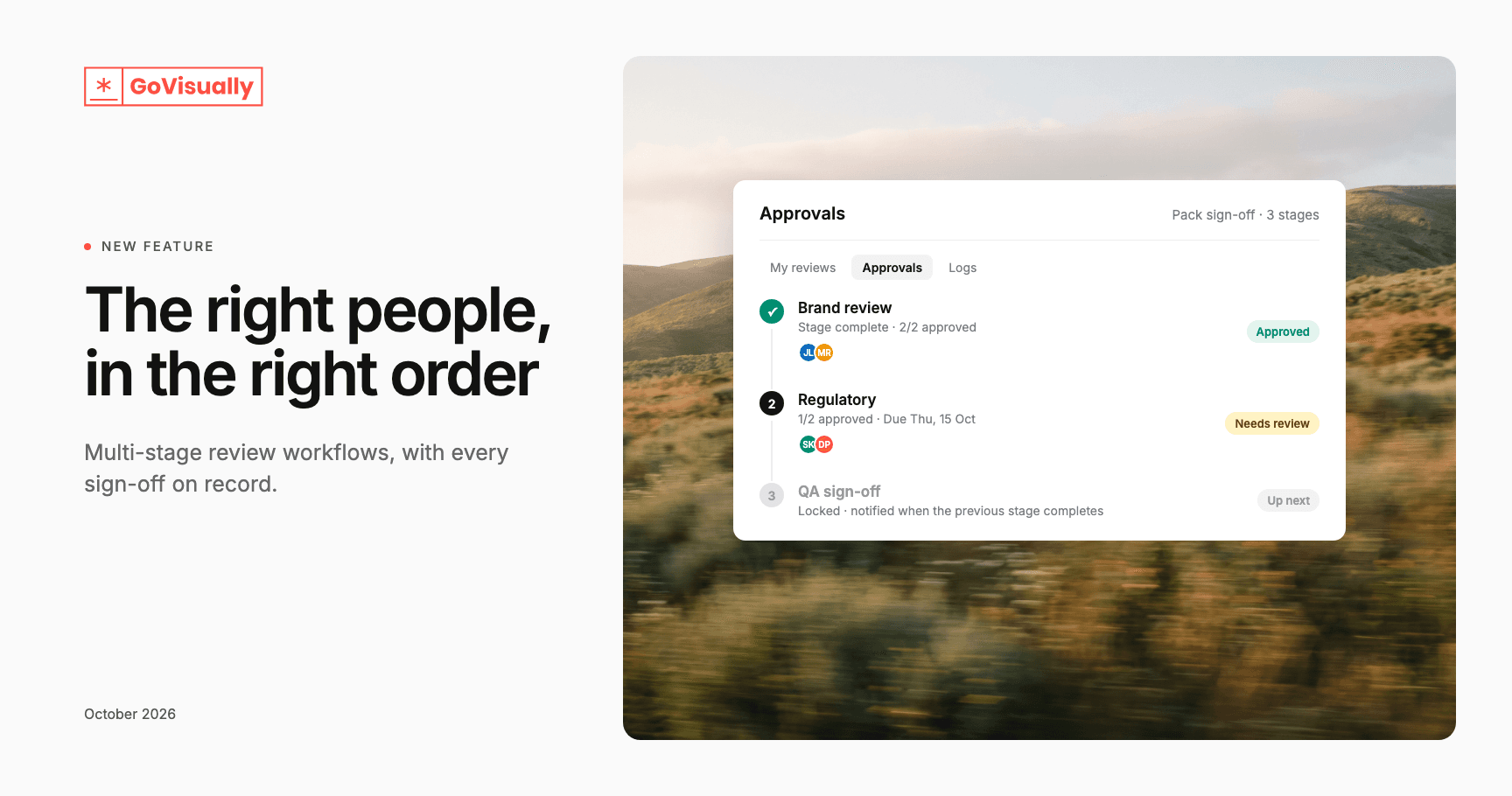
New: Multi-stage review workflows
New: Multi-stage review workflows (custom plans only)
Packaging sign-off rarely happens in one step. Brand checks the design, regulatory checks the claims, QA checks it’s ready for print. Until now, that order lived in email threads and people’s heads.
Workflows build that order into GoVisually. Every proof goes to the right people, in the right order, and every sign-off is recorded.
What’s new
-
Build your review route once. Set up stages such as Brand review, then Regulatory, then QA sign-off, choose the reviewers for each stage and save it as a workflow your team can reuse.
-
Choose how each stage advances. Require everyone in the stage to approve, or let the first approval move it on.
-
Proofs move on their own. When a stage is complete, the proof moves to the next stage automatically and the next reviewers are notified.
-
See every proof’s progress at a glance. A Review pipeline board shows which stage each proof is in. Project owners can drag a card forward to skip a stage, and every move is logged.
-
Changes restart the route. When a reviewer asks for changes, the workflow pauses. Upload a new version, submit it for review, and it starts again at stage one.
-
Stage deadlines and reminders. Give a stage a deadline. Reviewers get a reminder before it’s due, and the project owner is told when a stage runs late.
-
Checklists for each stage. Attach the checklists each stage needs, so reviewers know exactly what to check.
-
Sealed stages. Keep a stage’s review private to the people in that stage.
-
Verified sign-offs. Each approval records the reviewer’s name, email, time and a receipt ID in the proof’s decision log, which you can export.
How to set it up
-
Team admins can open Workflows in the sidebar and click Create workflow.
-
Add your stages, reviewers and deadlines, then save.
-
When you create a new project, choose your workflow under Review workflow.
Projects without a workflow work exactly as they do today. Each project keeps its own copy of the workflow, so changing a workflow later only affects new projects.