
New featureSecurity
🔐 Single Sign-On (SSO)
🔐 Single Sign-On (SSO) — Enterprise
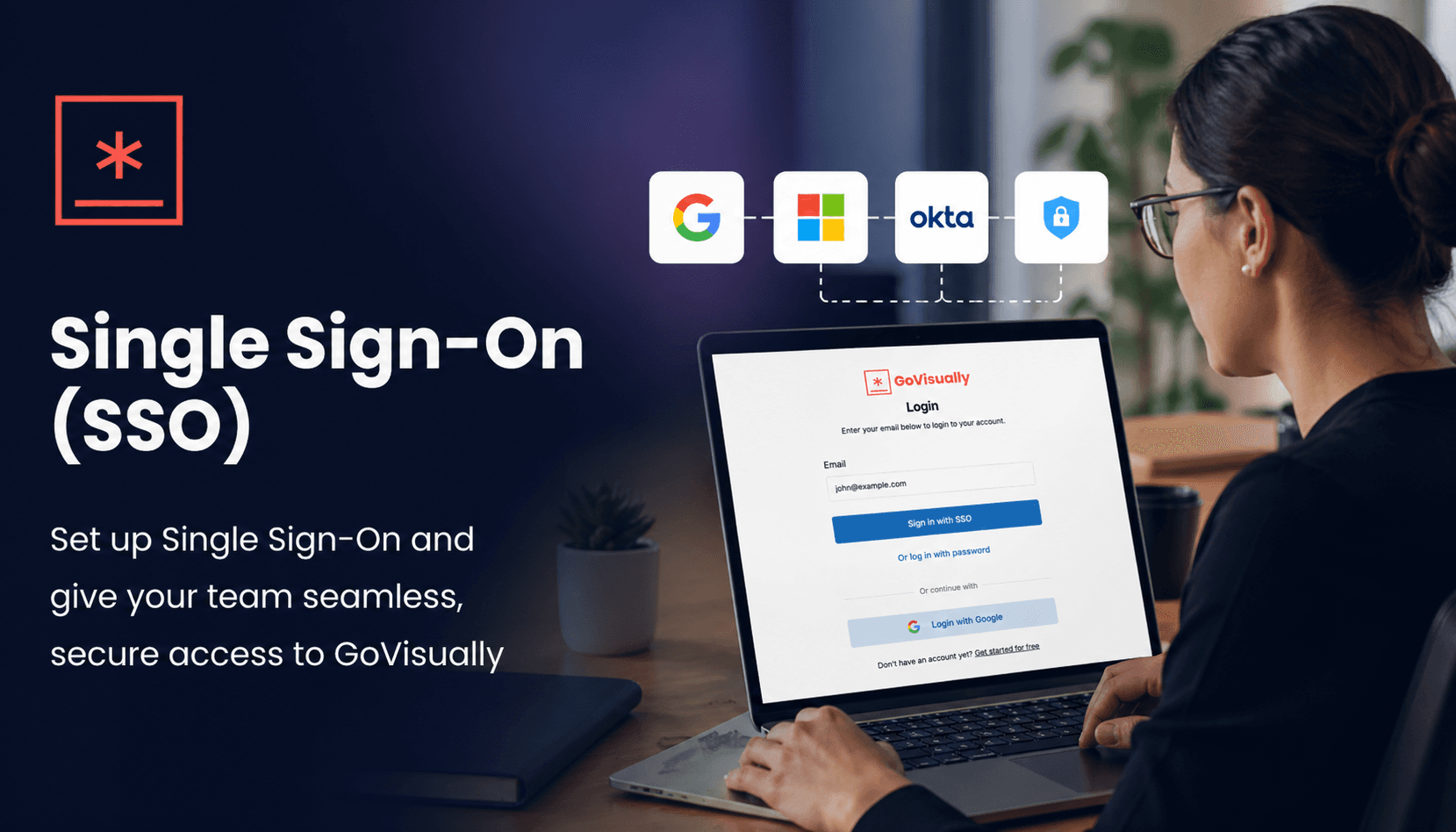
You can now sign in to GoVisually using your company's identity provider — no separate password needed. SSO is available for teams on Enterprise plans.
How it works:
- Enter your work email on the login page.
- If your organization has SSO enabled, the button automatically changes to "Log in with SSO".
- Click it and complete authentication through your company's login portal — you're in!
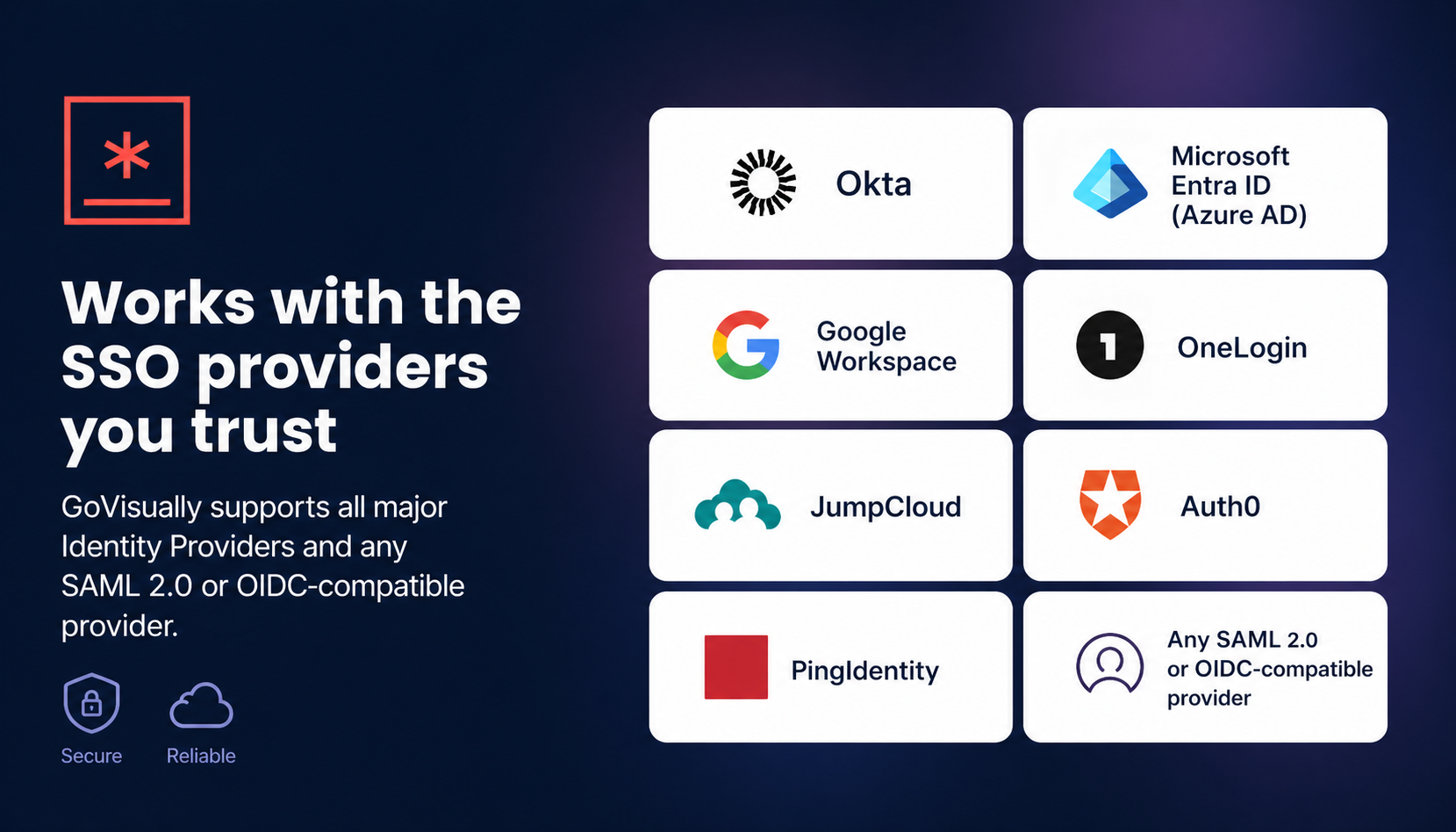
Works with all major identity providers:
- Okta
- Microsoft Entra ID (Azure AD)
- Google Workspace
- OneLogin
- JumpCloud
- Auth0
- PingIdentity
- Any SAML 2.0 or OIDC-compatible provider
SSO also works in the review modal — a secure popup window opens for authentication so you can log in without leaving the page you're reviewing.
🛡️ Security & SSO Settings Page
Team admins can now access a dedicated Security & SSO page under team settings (look for it in the sidebar).
- If SSO is not yet configured: See an overview of supported protocols, identity providers, what you'll need for setup, and a one-click button to request setup from the GoVisually team.
- If SSO is active: View your live connection details — identity provider, protocol (SAML 2.0 or OIDC), allowed domain, enforcement status, default role, and SCIM provisioning counts.
🔒 Security Highlights
This release includes enterprise-grade security built into the SSO flow:
- CSRF protection — Every SSO login uses a cryptographically secure, single-use state token to prevent cross-site request forgery attacks (OAuth 2.0 RFC 6749 compliant).
- Tokens never leave the server — Your JWT token is generated and used entirely server-side. It never passes through your browser or cookies.
- Short-lived codes — Authorization codes expire in 60 seconds and are single-use.
- HTTP-only cookies — All SSO-related cookies are protected from JavaScript access, guarding against XSS attacks.
🔔 Notes for Enterprise Teams
To enable SSO for your team, reach out to GoVisually support team.