
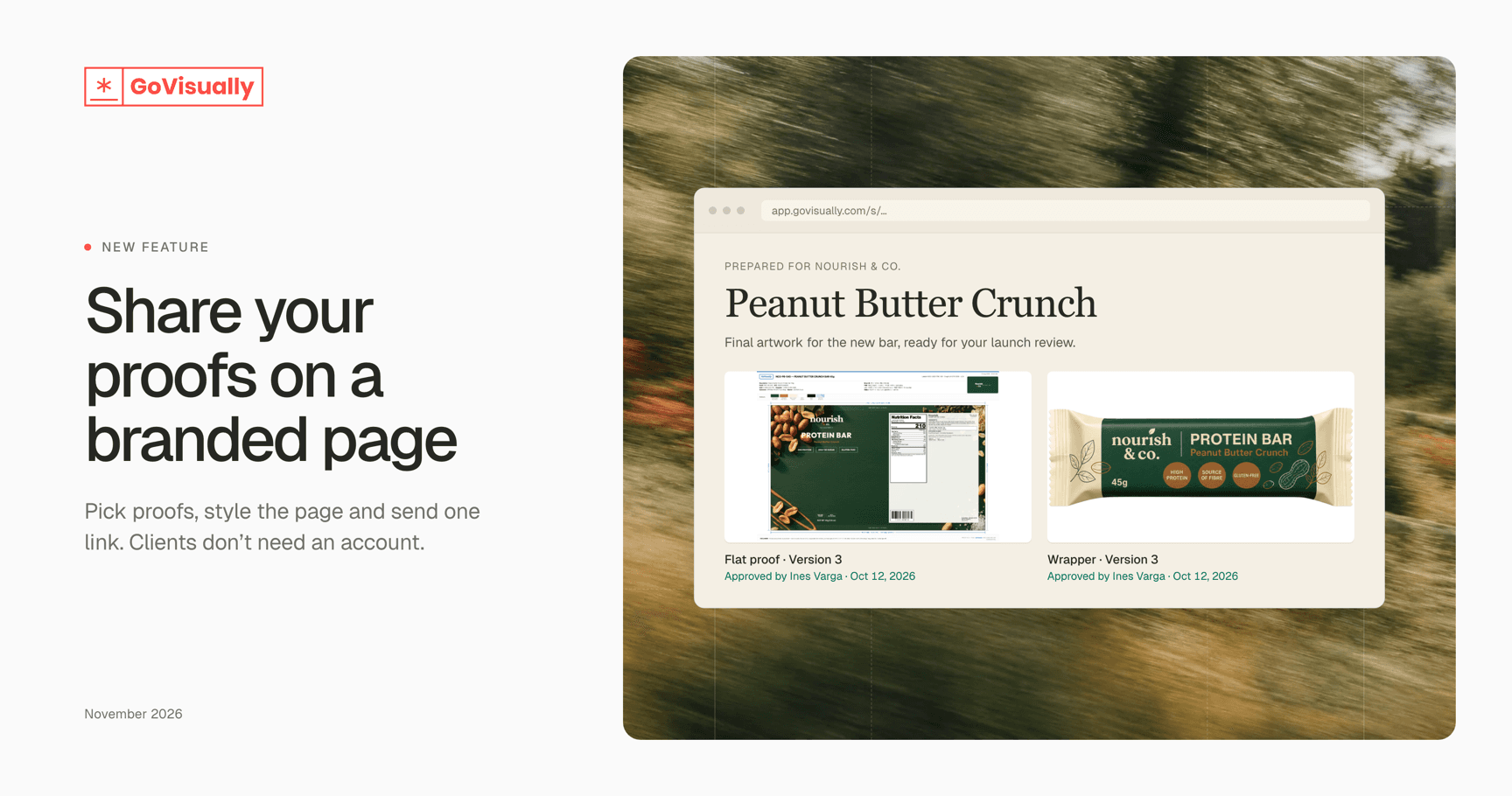
New: Showcase pages for sharing work with clients
Finished work often reaches clients as email attachments, with nothing to show which version is final or who signed it off.
Showcase turns the proofs you pick into a branded web page. You send one link, and your client opens it without a GoVisually account.
What’s new
Pick proofs, click Showcase. Select images, PDFs or videos on the Proofs tab and build a page from them.
Style it to match your brand. Choose a scrolling page or a full-screen slideshow, then set the type, background and accent colour. A live preview updates as you go, and your team logo is added for you.
Choose which versions clients see. Lock the page to the versions you shared, or always show the latest approved version.
Show who approved the work. Add who approved each proof and when, or turn this off.
Control access. Add a password, set an expiry date or ask visitors for their email. You can switch a showcase off at any time.
See when it’s opened. The new Showcases tab in each project shows views, visitors and when the page was last viewed.
Keep every page on brand. Team admins can set a Showcase brand kit under Logo and branding, and lock the look for everyone.
Good to know
Showcase pages are for viewing. Visitors can’t comment, approve or download from the page, so keep using proof reviews for feedback and sign-off.
A showcase can’t be edited once it’s created. To change the proofs, styling or access settings, create a new one.
Showcases can be made from team projects by members who can edit the project. Archived proofs, proofs in private sections and audio files can’t be added.
How to create a showcase
Open a team project and select your proofs on the Proofs tab.
Click Showcase in the selection bar.
Fill in the Details, Appearance and Access tabs.
Click Create showcase, then copy the link and send it to your client.
Showcase is rolling out gradually. Contact our support team if you’d like it turned on for your team.