
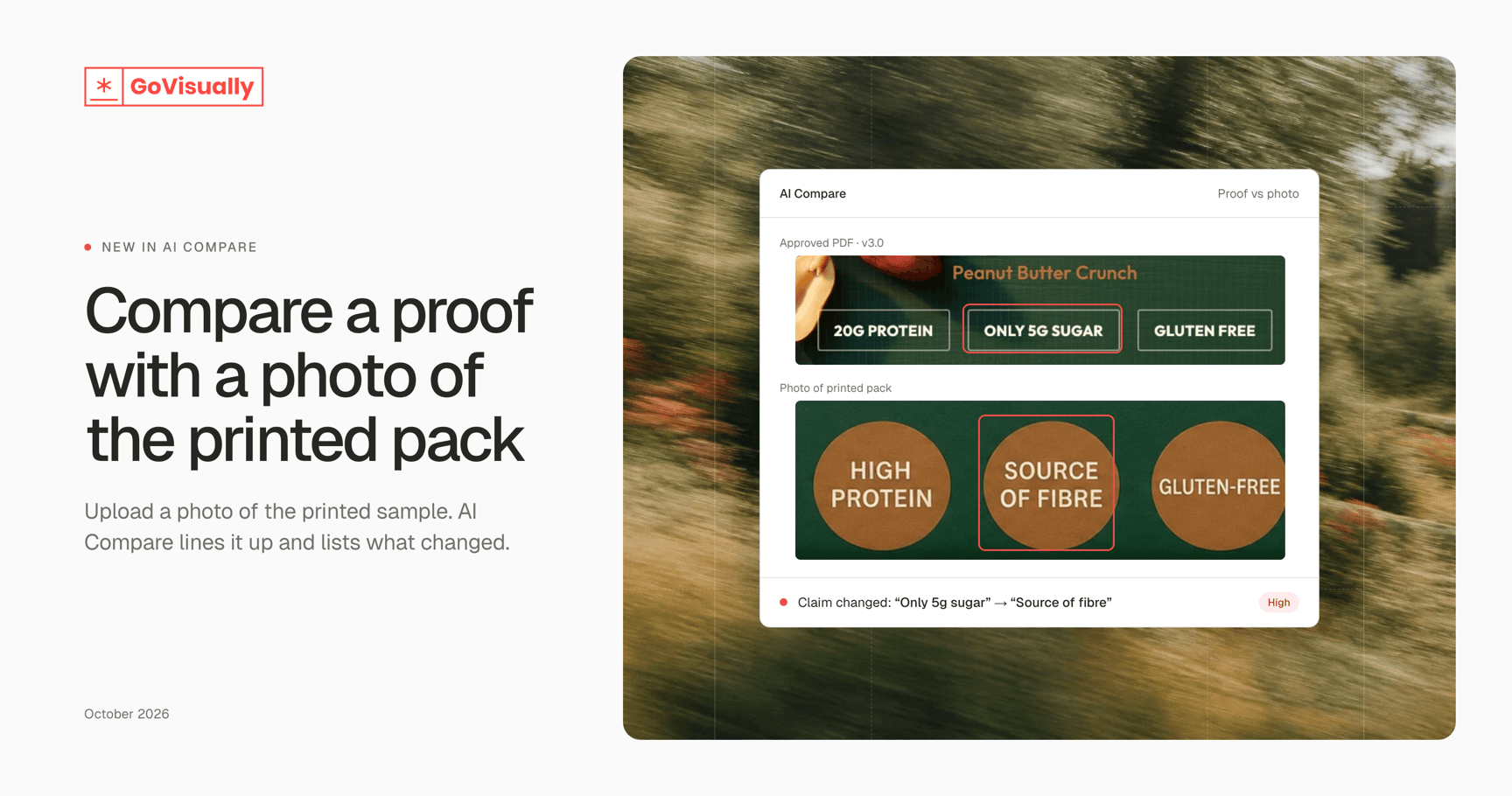
New: Compare a proof with a photo of the printed pack
The artwork was signed off. Then the printed sample arrives. Checking one against the other has always been slow, side-by-side squinting.
AI Compare can now compare a proof with a photo of the printed pack — and it’s easier to use for every kind of comparison.
What’s new
Compare against a photo. Upload a photo of a printed sample and compare it with the approved proof. AI Compare lines the photo up with the artwork before it looks for differences.
Start with what you’re comparing. A new start page asks one question: two versions of a proof, a proof against a file, or a proof against a photo.
Compare image files, not just PDFs. Upload JPG, PNG or TIFF files. If one side is an image, AI Compare tells you plainly that it can’t compare the text.
Sharper detail. Pages are rendered at the best resolution both files allow, so small print stays readable when you zoom in.
Filters that stick to each comparison. Narrow the list of changes by type or severity. Each comparison remembers its own filters, and tells you when some changes are hidden.
A steadier swipe view. The swipe divider now stays put while you pan and zoom.
Tidy up old runs. Delete a comparison from your history, or from the ⋯ menu while you’re viewing it.
How to compare a photo
Open AI Compare and choose A proof against a photo.
Pick the approved proof.
Upload your photo of the printed sample.
Review the differences AI Compare finds.
Tip: photos work best when the whole pack is in frame, flat and evenly lit.
AI Compare is available on selected plans. Contact our support team if you don’t see it.