
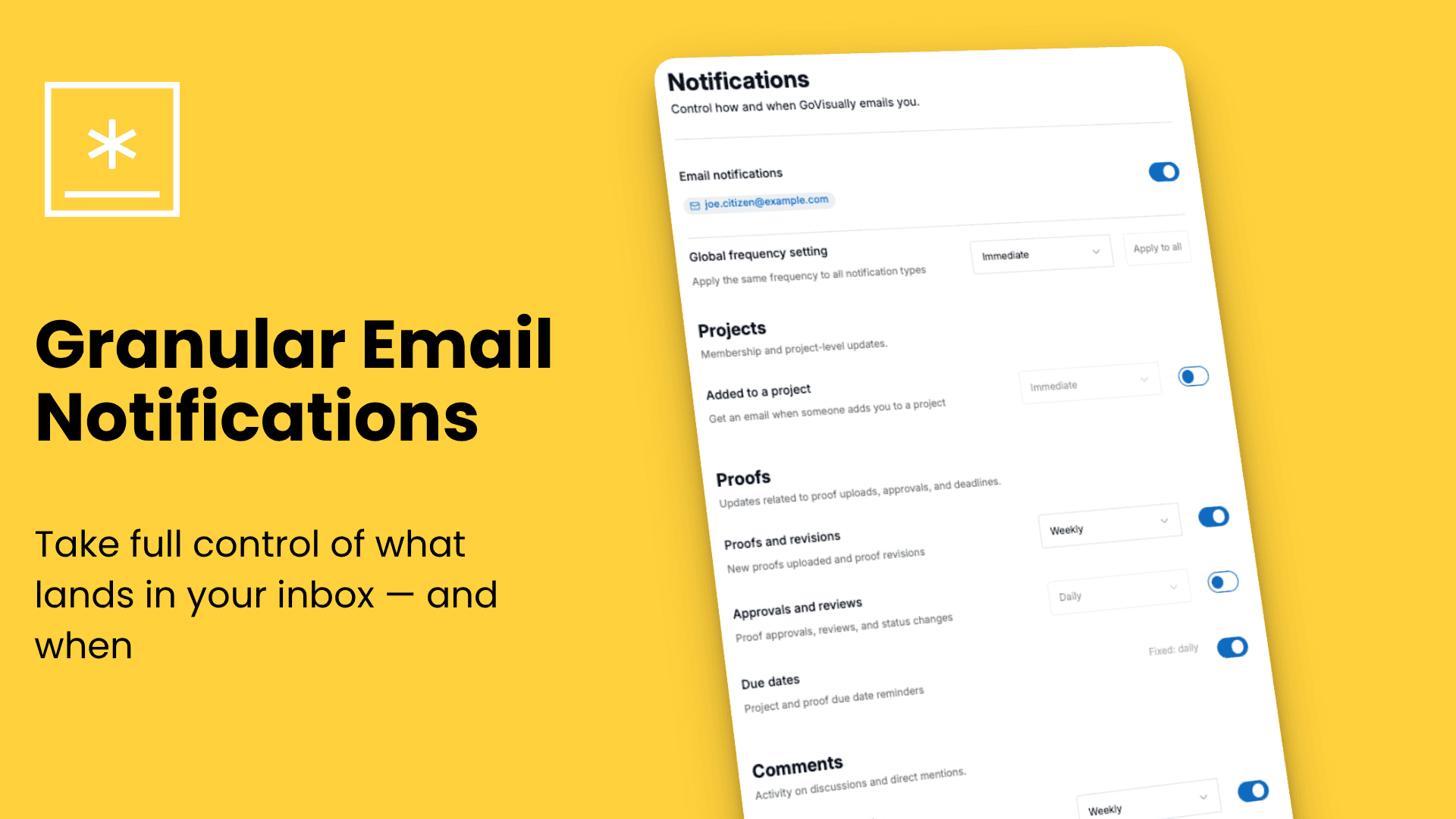
Granular email notifications
Take full control of what lands in your inbox — and when.
What's New?
You can now customize your email notifications at a granular level. Instead of a single on/off switch for all emails, you now get individual controls for six different types of activity, each with its own delivery schedule.
Here's what you can manage:
| Notification Type | |
|---|---|
| 🎨 Proofs & Revisions | When a new proof is uploaded or a new revision is added to an existing design |
| 💬 Comments & Replies | When someone leaves a comment on a design or replies to an existing thread |
| 📣 Mentions | When someone @mentions you in a comment or discussion |
| ✅ Approvals & Reviews | When a design is approved, changes are requested, or a review is completed |
| 📅 Due Dates | Reminders about upcoming or overdue deadlines on your projects |
| 📨 Project Invitations | When you're invited to collaborate on a new project |
For each of these, you can choose how often you'd like to hear about it:
- ⚡ Immediately — Delivered within minutes of the activity
- 🕐 Hourly — A bundled summary once per hour
- 📅 Daily — One digest email per day
- 📆 Weekly — A single weekly roundup
Good to know: Project Invitations are always delivered immediately so you never miss an invite. Due Date reminders support immediate, daily, or weekly frequencies.
What's Changed?
-
New notification settings page — Head to your Account or Team settings. You'll find a redesigned Notification Settings section with a clean layout where each notification type has its own row with a toggle and frequency dropdown.
-
Master switch — A single toggle at the top to turn all email notifications on or off instantly.
-
Global frequency with "Apply to All" — Set one frequency (e.g., Daily) and apply it to every notification type in one click. You can still fine-tune individual types afterwards.
-
Smarter email delivery — Behind the scenes, we've overhauled how notification emails are batched and sent. Emails are now grouped intelligently per frequency, so you get fewer, more relevant emails instead of a flood of individual messages.
-
No disruption to existing settings — If you've never touched your notification preferences, everything continues to work exactly as before. Your current settings are fully preserved.
Why This Matters
Not every notification deserves the same level of urgency. A project invitation needs your attention right away — but a due date reminder can probably wait until your morning digest.
Until now, email notifications in GoVisually were all-or-nothing. You either got everything or turned them all off. That meant important updates got buried in noise, or you missed things entirely because you'd muted everything.
With granular notifications, you decide:
- What you care about (toggle each type on or off)
- When you want to see it (pick immediate, hourly, daily, or weekly)
- How much control you want (configure each type individually, or set one frequency for everything)
The result? A cleaner inbox, fewer interruptions, and the confidence that the emails you do receive are the ones that actually matter to you.
FAQ
Where do I find the new settings? Go to Profile → My Notifications
Will my existing notification preferences change? No. Your current settings are untouched. The new granular controls only take effect once you actively update them.
Do I have to configure each notification type one by one? Nope. You can use the "Apply to All" button to set a single frequency across all types, then tweak individual ones if needed.
What does "Immediately" actually mean? Immediate notifications are batched and sent every few minutes. You won't get a separate email for every single activity — instead, they're grouped into short, frequent updates so you stay informed without inbox overload.
Can I still turn off all notifications entirely? Absolutely. The master switch at the top of the settings page lets you disable all email notifications in one click, just like before.
What if I'm on a team — do these settings apply to everyone? No. Notification preferences are personal. Each team member controls their own settings independently.